8. One-Off Jobs & On-Demand Customers
Not every job is a repeating one. Someone calls, wants one lawn job done, and may never call again. An on-demand customer is built for exactly that: you take their details, sell the job, and put it on the calendar in one go — without setting up a recurring plan you'd only have to cancel later.
If the customer should first see the price and approve it, send them an estimate instead: a priced offer they approve online, after which you schedule the jobs. See Section 9.
8.1 Creating an on-demand customer
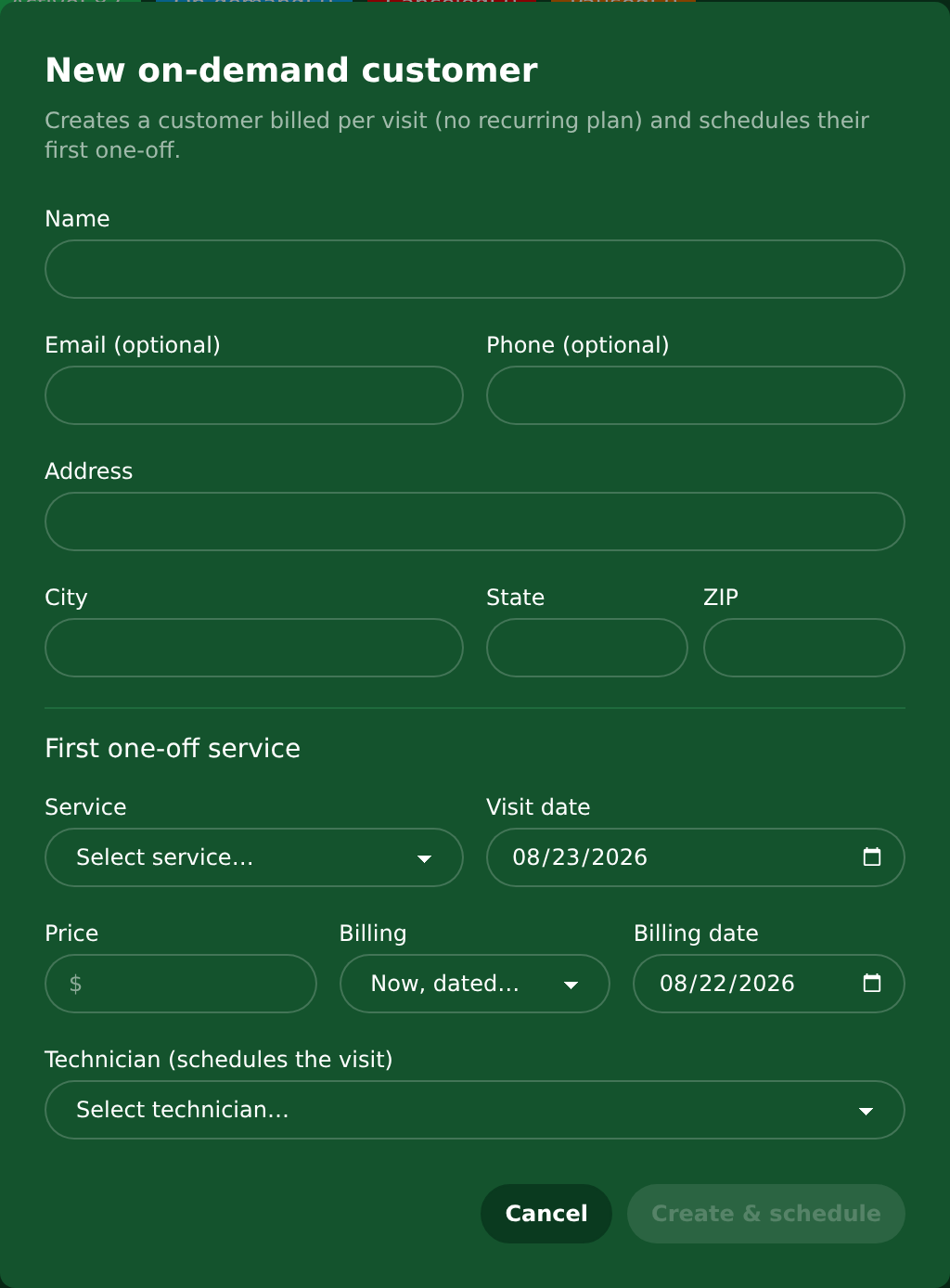
- On the Dashboard, click New On-Demand Customer.
- Fill in the customer's name, address, phone, and email.
- Pick the job from the one-time services list (see Section 5).
- Pick the technician and the date.
- Click Save.
The customer, the job, and the calendar stop are all created together.
8.2 When the customer gets charged
When you sell a one-off job you choose when the charge happens, using the Billing box on the form:
| Choice | What happens |
|---|---|
| On completion (the usual one) | Nothing is charged until the technician finishes the job. If it never happens, nothing is ever billed. |
| Now, dated… | The charge is posted straight away, dated the day you pick. |
Pick Now, dated… when the customer is paying up front, or when you've agreed a date for the money to land regardless of when the work gets done.
If you choose a date in the future, the charge appears on their account marked Scheduled — see Section 10.
8.3 If the email already exists
If you type an email that another customer already uses, the form doesn't just refuse it. It offers to use that existing customer instead, so you add the new job to the person already in your system rather than creating a duplicate.
Take that offer whenever it's really the same person. Duplicates split someone's history across two records, and the billing gets confusing fast.
8.4 How on-demand customers show up in your lists
On-demand customers appear in your customer list with the status On-demand, and that status is included in the default filter — so they're visible without you changing anything.
8.5 Marking the job done from the office
You don't have to wait for the technician to close the job on their phone. Open the service row and choose Mark completed. Useful when a job was finished but not recorded, or when you're tidying up at the end of the week.
8.6 The jobs you start with
Your account comes with a starter list of common one-off jobs, so the list isn't empty on day one:
| Service | Example price | Time |
|---|---|---|
| One-time Mow | $65.00 | 45 min |
| Spring / Fall Cleanup | $250.00 | 180 min |
| Lawn Aeration | $120.00 | 90 min |
| Hedge & Shrub Trimming | $95.00 | 60 min |
| Mulch Refresh | $180.00 | 120 min |
If you delete one by mistake, Settings > Recurring Billing > One-time Services > Add starter services puts the missing ones back. It only fills in what's missing — jobs you've already set up or renamed are left alone. If nothing is missing it tells you so and changes nothing.
8.7 What the technician is asked on their phone
Each starter job has its own checklist, matched to that job — a drain job doesn't ask for the weekly readings:
| Job | Asks for |
|---|---|
| One-time Mow | Work performed, Lawn condition, Notes to Customer |
| Spring / Fall Cleanup | Work performed, Debris removed (bags), Notes to Customer |
| Lawn Aeration | Work performed, Soil condition, Notes to Customer |
| Hedge & Shrub Trimming | Work performed, Notes to Customer |
| Mulch Refresh | Mulch installed (yards), Work performed, Notes to Customer |
You can edit any of these, and Restore default brings back that job's own checklist.
8.8 Turning a one-off customer into a regular one
Sometimes a one-off job goes well and the customer wants you back every week. You don't start again from scratch — you convert them.
- Open the customer.
- Click Convert to subscriber in the buttons at the top of their page.
- Pick the location, the repeating service they're signing up for, and the start date (tomorrow by default).
- Click to confirm.
From then on they're an ordinary customer on a repeating plan, and they show up in your schedule like everyone else.
Two things worth knowing:
- Only repeating services are offered here. One-time jobs aren't plans, so they don't appear in the list. If the service you want isn't there, set it up first under Settings > Recurring Billing — see Section 5.
- If they still have one-off jobs booked, you'll be told. EZ Lawn Biller shows you exactly which jobs are on the calendar and asks whether to go ahead. Saying yes cancels those bookings, because the repeating plan takes over from that date. Nothing is canceled without you agreeing to it.
8.9 What this costs you
A one-off job counts the customer's location toward your plan for that month. See Section 18 for the full picture.