15. Payroll
EZ Lawn Biller includes a built-in payroll calculator. It computes technician earnings — you then use those totals to run actual payroll through your payroll provider (e.g., Gusto, ADP, QuickBooks Payroll).
15.1 Technician Pay Profiles
Each technician has a Pay Profile that defines how they're compensated:
| Pay type | How it works |
|---|---|
| Hourly | Paid for the hours worked |
| Per visit | Paid a set amount for each lawn service finished |
A technician can be on both — an hourly base plus an amount per visit.
You can set a company-wide per-visit rate so you don't have to enter the same number for everyone, and override it for individual technicians who are paid differently.
Rates are kept with the dates they applied from, so a past period is always worked out at the rate in force at the time. Giving someone a raise doesn't change what they were owed last month.
15.2 Running Payroll
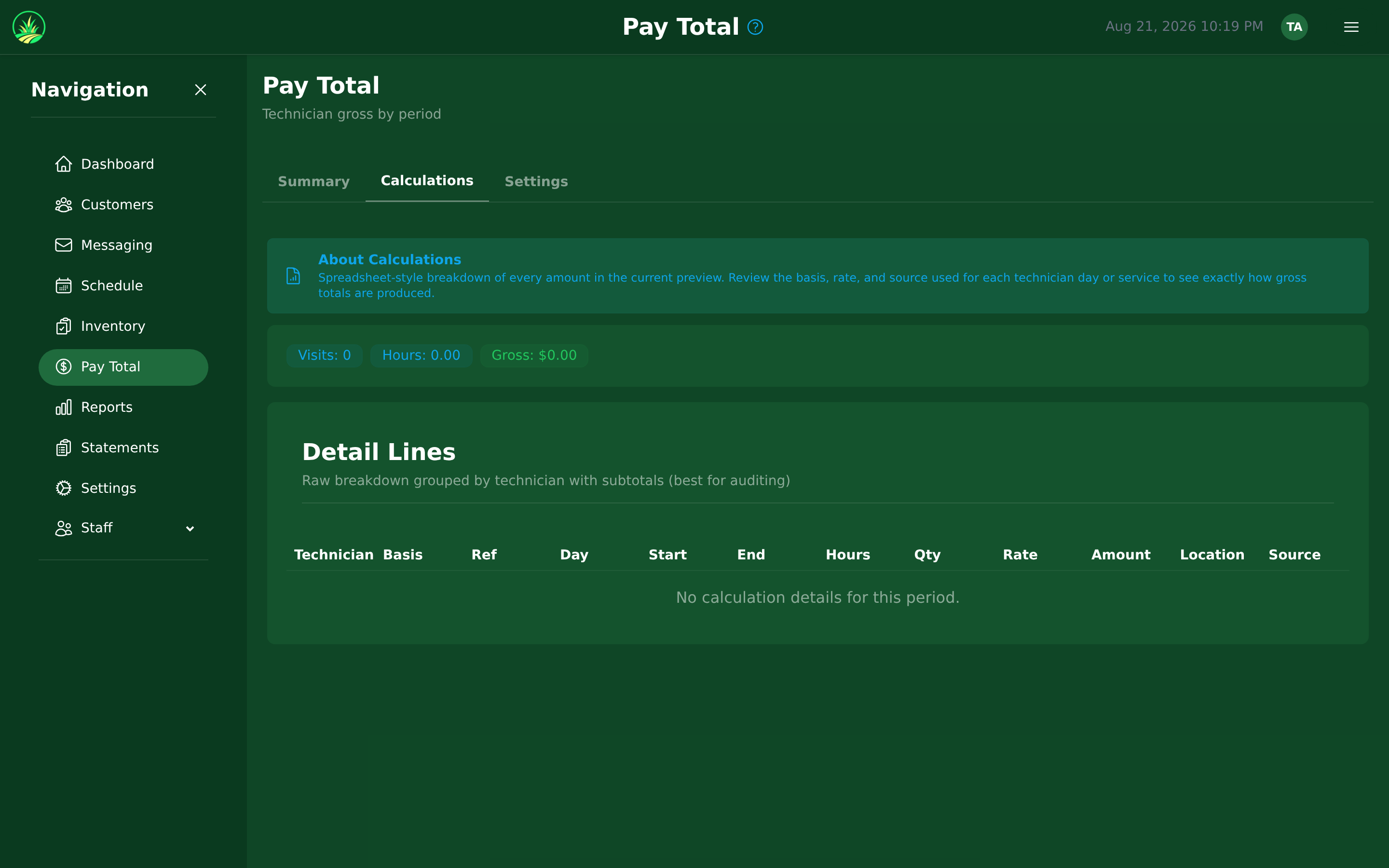
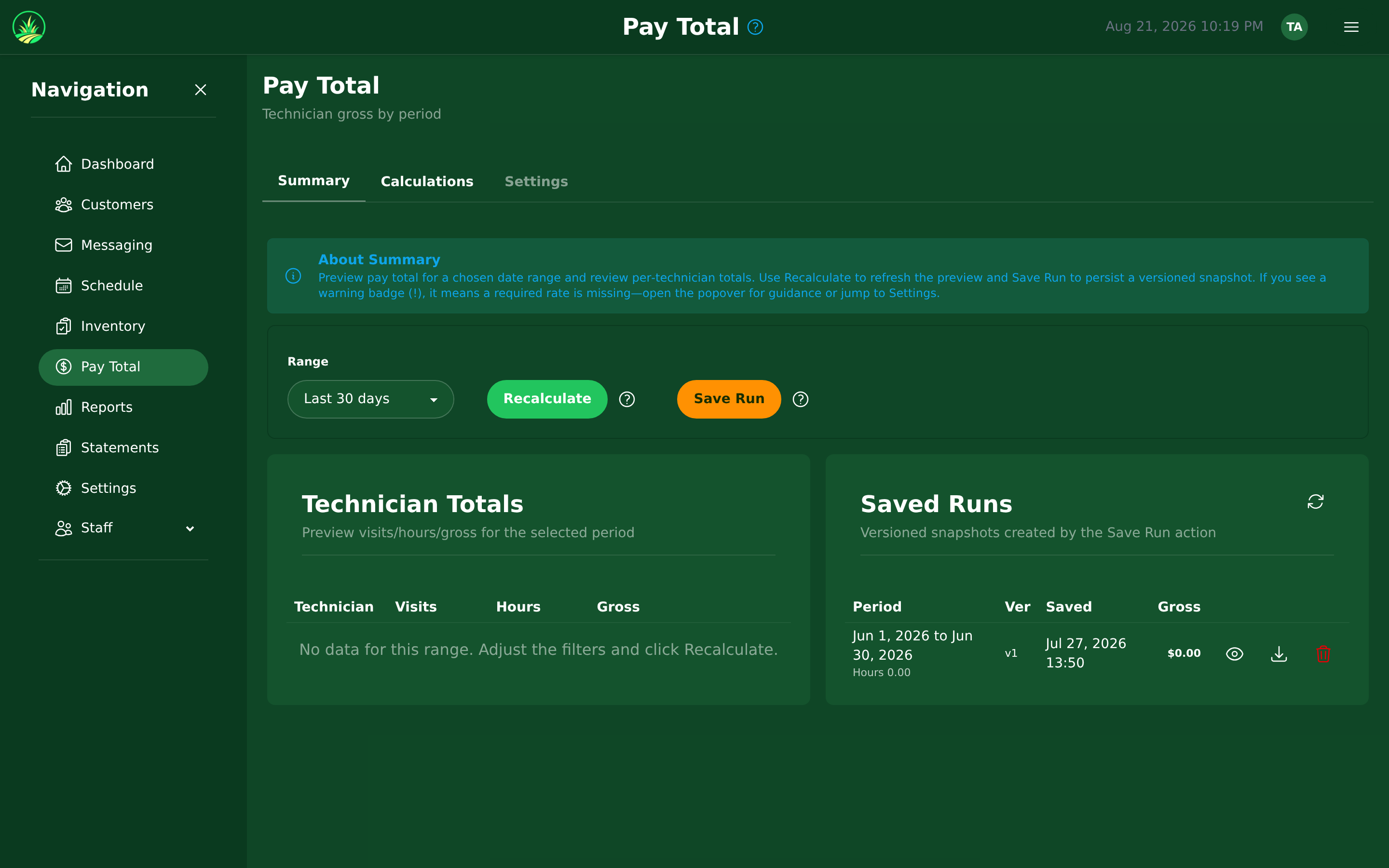
- Navigate to Pay Total in the sidebar.
- Click Run Payroll.
- Select the pay period (weekly, biweekly, or monthly).
- The system calculates earnings for each technician based on:
- Completed services during the period
- Their pay profile rates
- Hours worked (if hourly)
- Review the calculated amounts.
- Approve and finalize the payroll run.
15.3 Pay Statements & PDF Export
After running payroll:
- Each technician gets a Pay Statement showing:
- Earnings breakdown by type (hourly, per-stop, per-service)
- Services completed
- Total earnings for the period
- Statements are available as PDF downloads.
- Technicians can view their own pay statements from the mobile app or web portal.
Use the calculated totals to process actual payroll through your external payroll provider.